The Best USB-C Hubs and Docking Stations
A laptop with two ports and a desk full of stuff is a daily annoyance. You want your monitor, your keyboard, your mouse, your wired network and your camera's SD card all connected — and you want it to happen when you set the laptop down, not after five minutes of fumbling behind the screen. That's what a good hub or dock does. One cable in, everything else out, and your laptop charges while it works. The gap between a dock that does this reliably and one that doesn't is enormous.
No dock works the same on every laptop, whatever the box says. Port counts assume a host laptop that can actually feed them. Apple's M-series base chips cap you at one external display no matter what the dock claims, and plenty of Windows laptops quietly limit bandwidth over USB-C. Docks also run warm — that's physics, not a defect. And almost every dock we looked at has owners reporting the occasional dropped monitor that a replug fixes.
We think that the CalDigit TS4 is the best USB-C docking station for most people, and that the Anker 11-in-1 Docking Station is the one to buy if you want dual monitors and a full spread of ports without paying Thunderbolt money.
Everything we recommend

More ports than you'll use, and the charging to match

Two screens and a wired network without the Thunderbolt tax

The one you throw in a bag and forget about

Triple the bandwidth, if your laptop can actually use it

Three screens and Mac manners in a small footprint
At a glance
| Product | Ports | PD Charging | Price | |
|---|---|---|---|---|
| CalDigit TS4 18 Port Thunderbolt 4 DockTop pick | 18 Ports | 98W | $379.99 |
| Anker USB-C HubRunner-up | 11-in-1 | 85W | $50.99On sale |
 | Plugable USB-C Triple Display Laptop Docking StationAlso consider | 15-in-1 | 100W | $149.99 |
| OWC Thunderbolt 5 Dock 11-Port Connectivity SolutionUpgrade pick | 11-Port | — | $319.99 |
| Anker USB-C HubBudget pick | 5-in-1 | 90W | $19.99 |
| Belkin Thunderbolt 4 Docking Station Triple DisplayAlso great | 14-in-1 | 96W | $299.95 |
 | Satechi 13-in-1 USB-C Multiport AdapterAlso consider | 13-in-1 | 85W | $99.99 |
 | Kensington SD5780T Thunderbolt 4 Dual 4K DockingAlso in lineup | — | 100W | $259.99On sale |
How we picked
Host compatibility. We compared each dock's spec sheet against what Mac and Windows laptops can actually drive, since Apple's base M-series chips cap external displays at one. A dock that promises more than your laptop can deliver isn't a dock we'd recommend without a warning.
Charging headroom. We looked for at least 60 watts of Power Delivery for thin-and-lights and 96 watts or more for 16-inch and gaming laptops. Anything less and your battery drains while you work.
Port mix, not port count. Eleven ports that include four USB 2.0 connections aren't the same as eleven fast ones. We weighted 10Gb/s USB, Ethernet speed and card reader class over the number printed on the box.
Heat and stability. Published thermal testing from Tom's Hardware found several budget hubs throttling badly after sustained load while established brands held steady. We leaned toward brands with that track record and read owner feedback for patterns of dropped displays.
Support and warranty. Docks fail, and when they do you want a company that answers. We favored manufacturers with published warranty terms and a visible support presence, and we noted where owner feedback described support as responsive or absent.
Top pick
More ports than you'll use, and the charging to match
CalDigit TS4 18 Port Thunderbolt 4 Dock
The TS4 packs 18 ports into a slab you can stand on end, including 2.5-gigabit Ethernet, dual card readers and three downstream Thunderbolt 4 connections. Its 98 watts of host charging keeps a 16-inch MacBook Pro topped up even under load.
$379.99fromAmazonIf you only buy one dock and want to stop thinking about docks, this is it. The TS4 gives you 18 ports: three Thunderbolt 4, three USB-C, five USB-A at 10Gb/s, DisplayPort 1.4, 2.5-gigabit Ethernet, SD and microSD readers at UHS-II speeds, plus audio in and out. Most people won't fill it. That's the point — you buy headroom once and quit shopping.
The charging number is the part that actually changes your day. At 98 watts, the TS4 feeds a 16-inch MacBook Pro at full tilt rather than slowly losing ground while you render. Cheaper docks that top out at 60 or 65 watts will keep a thin-and-light happy, but plug in a big laptop and a couple of drives and you'll watch the battery percentage drift down.
Display support depends on your laptop more than on the dock. Windows machines can drive a single 8K screen or dual 4K at 60Hz. On macOS you get a single 6K display, and if you're on a base M-series chip, Apple's own silicon limits you to one external monitor regardless of what any dock offers. M Pro, M Max and M Ultra machines get the dual-display setup the box promises.
Build quality is the quiet reason this dock keeps winning. The aluminum chassis stands vertically or lies flat, and it doubles as a heatsink — owners running gaming laptops and multi-drive enclosures consistently describe it as stable under sustained load rather than something that throttles once it warms up. Tom's Hardware found CalDigit units held their transfer speeds where several budget hubs faded.
Flaws but not dealbreakers
This is the most expensive dock here by a wide margin, and if you're running a base M-series MacBook Air with one monitor and a mouse, you're paying for capability you'll never touch.
Setup isn't always instant. A recurring theme in owner feedback is fussy first-day behavior — a monitor that doesn't wake, audio routed to the wrong output — usually resolved by unplugging and replugging the Thunderbolt cable. Once it's settled, it tends to stay settled, but the first hour can be irritating.
The included cable is only 0.8 meters. That's a Thunderbolt certification requirement at full speed, not CalDigit being stingy, but it means the dock has to live close to your laptop.
Runner-upOn sale
Two screens and a wired network without the Thunderbolt tax
Anker USB-C Hub
Anker's 11-in-1 gives you HDMI and DisplayPort for a dual-monitor desk, Ethernet, card slots and 85 watts of pass-through charging. It's a flat slab that hides under a laptop and costs a fraction of a Thunderbolt dock.
$50.99fromAmazonList priceMost people setting up a home office want the same five things: two monitors, wired internet, a couple of fast USB ports, an SD slot and laptop charging. This Anker hub covers all of it. You get a 10Gb/s USB-C port, a 10Gb/s USB-A port, two slower USB-A ports for a keyboard and mouse, HDMI, DisplayPort, Ethernet, an audio jack, and SD plus microSD readers.
Read the display specs carefully, because this is where the savings show up. Running both screens at once caps you at 2K 60Hz per display with a DisplayPort 1.4 laptop, or 1080p if your machine is DP 1.2. That's fine for spreadsheets, email and code. It's not fine if you bought two 4K panels. And on macOS, both external monitors show the same image — a limitation of the hub, not just Apple.
At 85 watts of pass-through charging, it handles a 13- or 14-inch laptop comfortably and will keep a larger one from draining during normal work. You'll need to supply your own wall charger, which is worth budgeting for — the hub can't pass along power it never receives.
The build is a slim gray slab about the size of a paperback, and owners on Windows laptops, Pixel phones in desktop mode and Steam Decks all report it just works. The main gripe that comes up is Ethernet throughput not keeping pace with very fast home connections, so check that against your plan before you count on it for large transfers.
Flaws but not dealbreakers
The dual-monitor resolution ceiling is the real catch. If you want two crisp 4K screens, this hub won't get you there, and no firmware update will change that.
It's not compatible with Linux, per Anker's own documentation, and macOS users are stuck mirroring rather than extending across the two external outputs.
Budget pick
The one you throw in a bag and forget about
Anker USB-C Hub
A pocket-size aluminum stick with 4K HDMI, three USB-A ports and 90 watts of pass-through charging. It handles a hotel TV, a conference room projector and a mouse without a wall wart or a driver install.
$19.99fromAmazonFor travel, small and reliable beats big and capable every time. This hub weighs about two ounces and disappears into a laptop sleeve. Plug it into a USB-C port and you've got HDMI, one 5Gb/s USB-A port, two USB 2.0 ports for a keyboard and mouse, and a charging passthrough — no power brick, no software, no fuss in an airport lounge.
The charging is genuinely useful for something this size. It passes 90 watts through to your laptop from a 100-watt charger, keeping 10 watts for itself. That's enough for a MacBook Air or a 14-inch Pro doing ordinary work, and it means one wall charger covers the laptop and the hub together.
Know the HDMI limit before you buy: 4K at 30Hz. Thirty hertz feels choppy for cursor movement and scrolling, so this is a hub for presentations, video and second-screen reference material, not for a primary 4K desk monitor. At 1080p or 1440p it runs at a normal 60Hz and feels fine.
It's the most popular product in this lineup by a wide margin, and the feedback pattern is consistent: people buy it for a school MacBook, a work laptop with no ports, or a TV connection, and it does that job without drama. A few owners note the attached cable is shorter than they'd like.
Flaws but not dealbreakers
Two of the three USB-A ports are USB 2.0, which is slow — fine for peripherals, painful if you plug in a drive by mistake.
There's no Ethernet, no card reader and no second display output. It's a five-port hub and it doesn't pretend otherwise.
The 4K 30Hz cap is the thing most likely to disappoint. If you're planning to work all day on a 4K monitor, skip this one.
Anker backs this hub with an 18-month warranty.
Upgrade pick
Triple the bandwidth, if your laptop can actually use it
OWC Thunderbolt 5 Dock 11-Port Connectivity Solution
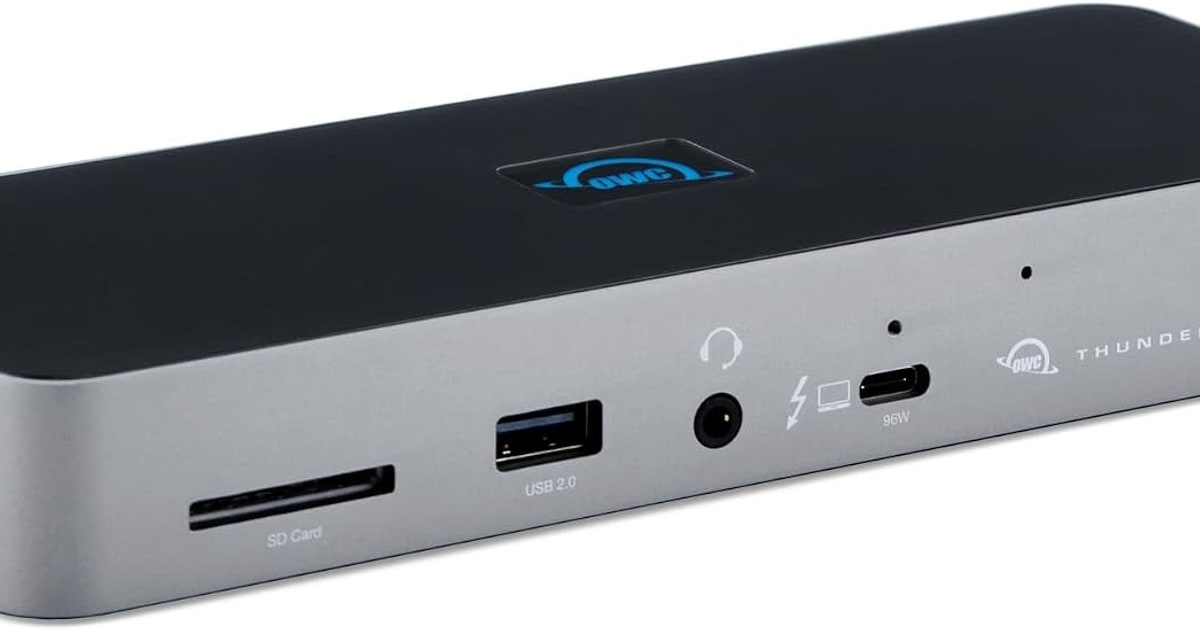
OWC's 11-port dock runs Thunderbolt 5, with three downstream TB5 ports for separate daisy chains, 2.5-gigabit Ethernet and UHS-II card readers. It's the pick for late-model MacBook Pros and Core Ultra laptops that can feed it.
$319.99fromAmazonThunderbolt 5 raises the ceiling from 40Gb/s to as much as 120Gb/s in one direction, which opens the door to 8K displays and external GPU enclosures running near full speed. If you're editing multicam video off fast external SSDs, that headroom is real. If you're writing email, it's a number on a box.
Buy this only if your laptop has Thunderbolt 5. That's a short list right now — recent MacBook Pros and Intel Core Ultra 200-series machines. On anything older the dock still works, falling back to Thunderbolt 4, USB4 or plain USB-C, but you're paying for bandwidth your computer can't reach. Check your laptop's spec sheet first.
The daisy-chaining design is the practical standout. Three separate Thunderbolt 5 ports mean three independent chains, so you can yank a drive off one chain without disturbing the display on another. Anyone who has ever unplugged the wrong device and watched three screens blink will appreciate that.
There's no external power brick the size of a paperback, which owners coming from older docks single out as a welcome change. The tradeoff is a chassis that runs warm — hot, by several accounts — and a handful of owners report occasional brief monitor disconnects on large ultrawide panels.
Flaws but not dealbreakers
Heat is the recurring complaint. It works, but it gets noticeably warm under load, and one pattern in owner feedback ties intermittent display dropouts to long sessions.
Eleven ports is fewer than the TS4's eighteen, and a couple of owners wish for more high-speed Thunderbolt connections given what the dock costs.
Also great
Three screens and Mac manners in a small footprint
Belkin Thunderbolt 4 Docking Station Triple Display
Belkin's 14-in-1 Thunderbolt 4 dock supports up to three 4K displays at 60Hz, pushes 96 watts to your laptop and adds 2.5-gigabit Ethernet. It's slim enough that it doesn't dominate a tidy desk.
$299.95fromAmazonIf your desk is the point — clean, quiet, three screens — this is the dock to look at. Fourteen ports cover video, data, power and networking through one USB-C cable, and the enclosure is thin and light enough that it blends in instead of squatting on your desk like a set-top box. Owners with MacBook Airs and Mac Studios describe setup as plug-in-and-go.
Triple 4K at 60Hz is the headline, and it's a meaningful step past the Anker runner-up's 2K ceiling. Your host laptop still governs what's actually possible — a base M-series Mac gets one external display no matter what — but on a Pro or Max chip or a capable Windows machine, three real 4K panels are on the table.
Ninety-six watts of charging sits just under the CalDigit's 98 and covers essentially any laptop short of a gaming machine with a discrete GPU under sustained load. The 2.5-gigabit Ethernet is the other quiet upgrade: if your router and internet plan support it, wired transfers and video calls stay steady in ways Wi-Fi doesn't.
Belkin has a long track record with Apple hardware, and that shows up in how uneventful this dock is for most Mac owners. The one caution worth flagging: at least one owner reports trouble pairing it with a USB audio interface on an M4 Pro machine, so if you're running a recording setup, keep the return window in mind.
Flaws but not dealbreakers
It's a premium-priced dock with fewer ports than the CalDigit, and no SD card slot — a real omission if you shoot photos or video.
Audio interfaces appear to be the weak spot. Musicians and podcasters should test their specific gear early rather than assuming it'll work.
Who this is for
Buy a dock if your laptop has fewer ports than your desk needs and you plug in more than one thing at a time. Remote and hybrid workers get the most out of it — one cable replaces a fistful, and a wired network connection cures the video-call stutter Wi-Fi causes. Photographers and video editors benefit from fast card readers and 10Gb/s ports for external drives. Students and travelers usually need much less: a small bus-powered hub with HDMI and a couple of USB-A ports covers a dorm monitor and a projector.
Skip the expensive end if you own a base M-series MacBook Air and one monitor, because Apple's chip limits you to a single external display and no dock changes that. This guide covers powered docks and portable USB-C hubs that connect over a single cable. It doesn't cover DisplayLink adapters, monitor-integrated docks, or eGPU enclosures, and it doesn't cover the wall chargers most powered docks assume you already have.
How we picked
We built the list around a handful of things that actually determine whether a dock works on your desk. Host compatibility: we checked each dock's claims against the real limits of Mac and Windows laptops, because a base M-series chip drives one external display no matter what the box says. Charging headroom: at least 60 watts for a thin-and-light, 96 or more for a 16-inch or gaming laptop. Port mix: we counted fast ports, not total ports, and weighted 10Gb/s USB, 2.5-gigabit Ethernet and UHS-II card readers. Heat and stability: published thermal testing shows budget hubs throttling under sustained load while established brands hold, so we favored brands with that record. Support: clear warranty terms and a company that responds when something dies.
Other usb-c hubs and docking stations worth considering
If you want three monitors on a Windows laptop with no drivers to install: The Plugable USB-C Triple Display Laptop Docking Station ($149.99) — The Plugable UD-MSTH3 uses Multi-Stream Transport to drive three HDMI displays — either two at 4K 60Hz or one 4K plus two 1080p — without any software install on Windows 11 or ChromeOS. It's a compelling setup for anyone who spreads spreadsheets or trading charts across a wall of screens, and it adds 100 watts of host charging plus a dedicated 30-watt port for a phone. Plugable also backs it with lifetime support from a North American team, which matters more than it sounds when a dock stops behaving. Two things give us pause: it isn't recommended for Macs or ARM systems at all, and the power supply is bulky enough that several owners call it out as the dock's biggest weakness. It's also newer than the rest of this lineup, so there's less accumulated feedback to lean on.
If you want a huge port spread in something you can still carry: The Satechi 13-in-1 USB-C Multiport Adapter ($99.99) — Satechi's 13-in-1 adapter is a flat aluminum bar with an unusual port list: one 10Gb/s USB-A, three USB-A 3.0, two USB 2.0, two USB-C at 10Gb/s, two HDMI 2.0, DisplayPort 1.4, gigabit Ethernet and a headphone jack. On Windows it supports MST for up to three extended displays, with a single DisplayPort output reaching 8K at 30Hz. It's fully plug-and-play across Windows, macOS, ChromeOS and Linux, and Satechi covers it with a two-year limited warranty. What you give up is Thunderbolt bandwidth and the stability that comes with a wall-powered dock — 85 watts out from a 100-watt input, gigabit rather than 2.5-gigabit Ethernet, and very little owner feedback so far to confirm how it holds up.
The competition
This is what our research surfaced, not a census of every dock on the market. New models appear constantly, and plenty of good ones aren't here simply because they didn't come up in the reviews and spec sheets we worked from. The dock below is a legitimate product that lost to a pick for specific reasons.
The Kensington SD5780T Thunderbolt 4 Dual 4K Docking ($259.99) — The Kensington SD5780T is a well-built Thunderbolt 4 dock aimed squarely at offices: dual 4K 60Hz output, up to 100 watts of laptop charging from a 180-watt supply, a UHS-II SD reader, four USB-A ports, an on/off switch and VESA mounting holes. Its cleverest feature is static power allocation — each downstream Thunderbolt port gets its own 15 watts without stealing from your laptop's 96. It also has a security lock slot, which is why IT departments like it. We didn't pick it because its owner feedback is the most mixed in this group, with a recurring pattern of units failing after several months and complaints about reaching support, plus reports of Ethernet and display connections dropping out. If you're deploying docks across a team and want VESA mounting and a lock slot, it's still worth a look — just buy from somewhere with a generous return policy.
Setup and troubleshooting notes
Start by checking what your laptop can actually do, not what the dock claims. Look up your chip: base M-series Macs support one external display, while Pro, Max and Ultra chips support more. On Windows, find whether your USB-C port does DisplayPort 1.4 or 1.2, since that decides your dual-monitor resolution. Use the cable that came with the dock — Thunderbolt speeds need a certified cable, and a random USB-C cord from a drawer is the single most common cause of a dock that half works. Give powered docks some air; they run warm by design, and stacking one under a laptop traps heat. When a monitor won't wake or audio goes to the wrong place, unplug the host cable, count to five and plug it back in. That fixes most of it. If a dock fails outright within the return window, return it rather than troubleshooting for weeks.
Questions we get
What's the difference between a USB-C hub and a docking station?
A hub is usually bus-powered and small — it borrows power from your laptop and adds a few ports. A docking station has its own wall power supply, so it can charge your laptop while running monitors, drives and Ethernet at the same time. Hubs are for travel; docks are for a desk you sit at every day. If you want your laptop to charge through the connection, you want a dock.
Do I need Thunderbolt, or will a regular USB-C hub work?
A regular USB-C hub is fine if you want one monitor, a keyboard, a mouse and maybe a drive. Thunderbolt 4 earns its cost when you need dual 4K displays at 60Hz, fast external storage, or full 40Gb/s bandwidth shared across many devices at once. Thunderbolt 4 docks also work with plain USB-C laptops — they just run at whatever speed your laptop supports. Check your laptop's port before you spend up.
Why does my Mac only support one external monitor?
Base M-series chips — the plain M1 through M4 in a MacBook Air or entry MacBook Pro — natively drive only one external display over USB-C or Thunderbolt. That's an Apple silicon limitation, not a dock problem, so buying a dock with three video outputs won't fix it. M Pro, M Max and M Ultra chips support multiple displays. DisplayLink adapters work around the limit using software rendering, though none of the picks here use that approach.
How much Power Delivery do I need to charge my laptop?
Sixty watts covers most 13- and 14-inch thin-and-lights during normal work. A 16-inch MacBook Pro or a gaming laptop wants 96 watts or more, especially under heavy load, or the battery will slowly drain even while plugged in. The CalDigit TS4 pushes 98 watts and the Belkin 96, which is why they suit larger machines. Remember that most powered docks need their own wall adapter and some hubs don't include a charger at all.
Is Thunderbolt 5 worth it, or should I stick with Thunderbolt 4?
Only if your laptop has a Thunderbolt 5 port — currently recent MacBook Pros and Intel Core Ultra 200-series machines. Thunderbolt 5 tops out around 120Gb/s versus 40Gb/s for Thunderbolt 4, which matters for 8K displays and external GPU enclosures. For everyone else, Thunderbolt 4 remains the sweet spot and stays fully compatible with Thunderbolt 3, USB4 and USB-C gear.
Can a USB-C hub damage my laptop's battery or ports?
A hub from an established brand that follows the USB-C Power Delivery spec won't hurt your laptop. The risk sits with no-name hubs that mishandle power negotiation or overheat under load. Stick with brands that publish real specifications and back their products with a warranty, and use the cable that shipped in the box.
Why you should trust us
For this guide:
- We read manufacturer specification sheets for every dock here and compared their display, charging and bandwidth claims against what current Mac and Windows laptops can actually support.
- We reviewed published coverage from outlets including Wirecutter, RTINGS, PCMag and Tom's Hardware, particularly thermal and throughput findings that separate stable docks from ones that throttle.
- We read through owner feedback for each product looking for repeated patterns — dropped displays, heat, support experiences — rather than isolated complaints.
- We read owner reviews on every listing, weighted toward the critical ones, because that is where the recurring failures show up.
- We have a systematic way of automatically fetching the latest prices, so the numbers on this page stay current.
- This is a research-focused guide, so the team may not own every product listed — though we often do own the top winners, which gives us extra context for the recommendations.
- We don't accept free products, and the retailer commission never changes which product we recommend.
Sources
Best Thunderbolt and USB-C Docks 2026 — Wirecutter, Wirecutter / NYT
Best USB-C Hubs and Docking Stations — RTINGS.com, RTINGS.com
CalDigit TS4 Thunderbolt 4 Dock Review — The Verge, The Verge
Best USB-C Hubs of 2026 — Tom's Hardware, Tom's Hardware
Thunderbolt 5 Explained: Speed, Compatibility & What to Buy — AnandTech, AnandTech
Best USB-C Docking Stations for Mac — 9to5Mac, 9to5Mac
USB-C and Thunderbolt Dock Buying Guide — PCMag, PCMag
OWC Thunderbolt 5 Dock Hands-On Review — Ars Technica, Ars Technica
DisplayLink vs. Thunderbolt: Which Multi-Monitor Solution Is Right for You? — How-To Geek, How-To Geek
Best Laptop Docking Stations 2026 — Laptop Mag, Laptop Mag
USB4, Thunderbolt 4, and Thunderbolt 5 Compared — Intel ARK / Connectivity Spec, Intel
Amazon product listings and owner reviews for all 8 products
Manufacturer specification pages for each product
Some passages in this guide may be paraphrased with AI help. Prices are refreshed automatically.
More like this.
Continue exploring electronics reviews and recommendations.

The Best USB Hubs And Multi-Port Adapters For Laptops
Your laptop probably has two USB-C ports, maybe three. One of them is busy charging. That leaves one port for a monitor, a mouse, a keyboard, an external…

The Best USB Microphones for Podcasting
Your voice is the whole show. Listeners will forgive a rambling tangent, but they'll click away from a thin, echoey recording within seconds. A USB…

The Best Portable USB-C Monitors
A second screen changes how a laptop feels. Spreadsheets stop hiding behind browser tabs, and a video call stops covering your notes. What makes a…

The Best Portable Power Stations for Camping
A power station is the quiet fix for the two things that actually annoy you at a campsite: a cooler that has to keep working, and phones that die by…

The Best Power Strips With USB Ports
Look at your desk or your nightstand and count what's plugged in. A laptop, a phone, maybe a monitor, a lamp, earbuds, a tablet that's permanently at 12…

The Best Home EV Charging Stations
Home charging is the whole reason an EV feels easy. A 240-volt Level 2 charger adds roughly 25 to 45 miles of range an hour, so you plug in after dinner…