The Best Portable USB-C Monitors

A second screen changes how a laptop feels. Spreadsheets stop hiding behind browser tabs, and a video call stops covering your notes. What makes a portable monitor worth carrying is boring stuff: one cable that handles power and video, a stand that holds steady on a wobbly café table, and a panel sharp enough to read at arm's length. If you have to dig out an adapter and a wall plug every single time, you'll leave it at home. That's really the whole test.
Here's the honest part. None of these is as good as the display sitting on your desk. They're dimmer than most laptop screens, so direct sun wins every time. Nearly all of them run off your laptop's battery, which costs you an hour or two of runtime on a long flight. Stands are compromises, speakers are thin, and the brightness controls usually live on a fiddly little button along the edge. You're trading quality for the fact that it folds flat.
Which one you buy comes down to what you'll do with it. Most people want plug-and-play reliability, a screen about the size of their laptop, and a case they don't hate. Gamers and handheld owners care far more about refresh rate. Photo and video people care about color and contrast, and they'll pay for it. We think that the ASUS ZenScreen MB16AHV is the best portable USB-C monitor for most people, and that the ARZOPA Z1FC is the one to buy if you want a 144Hz screen on a budget.
Everything we recommend

Not the sharpest screen here, but the easiest to live with
144Hz on a budget, if you can live with plastic

The sharpest, lightest big screen, if you can pay for it
Prices as of Nov 5, 9:31 AM PT · Details
At a glance
| Product | Resolution | Weight | Price | |
|---|---|---|---|---|
| ASUS ZenScreen 16”Top pick | 1080P Full HD | 2 lbs | $99 |
| LG gram +View 17-inch LightweightUpgrade pick | 2560x1600 | 1.72 lbs | $459 |
 | INNOCN 15.6" Portable Monitor OLED Touch SecondAlso consider | 4K OLED | 5 lbs | $299.99 |
| ARZOPA 16.1'' 144Hz Portable Gaming MonitorBudget pick | 1080P FHD | 3.13 lbs | $109.99 |
 | ThinkVision M14t Gen2 14-inch MonitorAlso in lineup | — | 2 lbs | $287.99 |
Prices as of Nov 5, 9:31 AM PT · Details
How we picked
Single-cable setup. We required USB-C DisplayPort Alt Mode so the monitor takes video and power from one port, and we treated a second input like mini HDMI as a meaningful safety net. Spec sheets and owner feedback both show that most portable-monitor frustration is a compatibility problem, not a picture problem.
Sharpness for the size. We compared pixel density rather than resolution alone, because 1080p looks very different on a 13-inch panel than on a 16-inch one. Roughly 140 pixels per inch was our floor for comfortable text work at laptop distance.
Panel and color. We looked for at least full sRGB coverage on every monitor, and for near-full DCI-P3 on anything pitched at photo or video people. Published reviews of each panel type informed how much we trusted the manufacturer's numbers.
Stand and carry. We favored stands that hold an angle on an uneven table, plus a case or sleeve that comes in the box. Weight under about two pounds is where owners stop leaving a monitor at home.
Power behavior. We noted which monitors drain the host laptop and which can accept power and pass it along. On a long travel day, that difference decides whether you carry a second charger.
Top pick
Not the sharpest screen here, but the easiest to live with
ASUS ZenScreen 16”
A 15.6-inch 1080p IPS panel with two full-function USB-C ports, a mini HDMI input, and a kickstand built into the back. It's the portable monitor we'd hand to someone who just wants a second screen to appear when they plug in a cable.
$99fromAmazonPrices as of Nov 5, 9:31 AM PT · Details
Almost any modern laptop can drive it with one cable. The ZenScreen takes video and power over USB-C DisplayPort Alt Mode, and there's a port on each side, so the cable runs whichever way your desk allows. If your machine only puts video out over HDMI, the mini HDMI input and the included adapter cover you. Windows, macOS and ChromeOS all treat it as an ordinary display. There's nothing to install.
The IPS panel is the sensible middle of the road. Published reviews put color coverage right around full sRGB, with accurate color straight out of the box. That's enough to check photos for a client deck, if not to grade a film. Viewing angles stay honest when a colleague leans in over your shoulder, and the anti-glare coating keeps ceiling lights from turning the screen into a mirror.
The kickstand and sleeve are better than they sound. The stand folds out of the back and holds the panel in portrait or landscape, which matters more than you'd think when you're reading long documents or code. There's also a standard tripod socket, so a cheap desktop tripod puts the screen at eye level. The sleeve keeps it from getting scuffed in your bag.
It's the safe pick if you're buying without seeing one first. ASUS has iterated on the ZenScreen line for years, and this is the version where the rough edges got sanded down. Owners mostly report it doing the dull thing well: plug in, get a picture, fold it away. When a portable monitor goes wrong, it's usually a compatibility problem, and this is the model least likely to hand you one.
Flaws but not dealbreakers
1080p spread across 15.6 inches isn't especially sharp. That works out to roughly 141 pixels per inch, so sit close and you'll see the pixel structure in small text. For spreadsheets, email and video it's fine. If you live in code or read a lot of fine print, a 1440p or 4K panel is a real step up.
It leans on your laptop's battery, and it isn't bright. There's no battery inside, so it draws from the host the entire time it's on. Expect less runtime unplugged, and plan to find an outlet for long sessions. Peak brightness sits around 300 nits by published measurements, which is fine indoors and hopeless on a sunny patio.
It's 60Hz, so don't buy it for games. Motion looks like every other office monitor: smooth enough for scrolling and video, soft and smeary in a fast shooter. If you're pairing this with a Steam Deck or a gaming laptop, the 144Hz option below is the better match.
The MB16AHV comes with a three-year warranty.
Budget pick
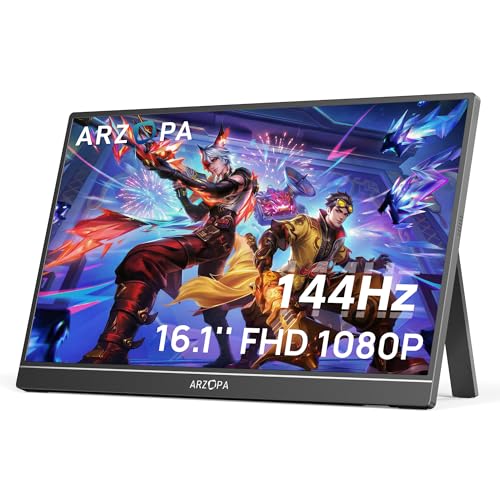
144Hz on a budget, if you can live with plastic
ARZOPA 16.1'' 144Hz Portable Gaming Monitor
A 16.1-inch 1080p IPS panel that runs at 144Hz, with two USB-C ports, mini HDMI and a kickstand built into the back. It's aimed at Steam Deck and gaming laptop owners, but the extra size makes it a fine everyday second screen too.
$109.99fromAmazonPrices as of Nov 5, 9:31 AM PT · Details
The 144Hz panel is the reason to buy it. Games feel smoother, and so does everything else — dragging windows, scrolling a long page, panning around a map. Most portable monitors stop at 60Hz, and the difference is obvious once you've used both. One caveat from the spec sheet: ARZOPA doesn't list adaptive sync, so frame rates that swing around can still tear.
It plugs into nearly everything you own. Two full-function USB-C ports and a mini HDMI input mean a Steam Deck, a PS5, an Xbox, a MacBook or a Windows laptop can all put a picture on it. No drivers, no software, no hub. And if your laptop's USB-C port turns out to be data-only, HDMI is your fallback rather than a dead end.
The kickstand is steadier than a folio cover. It's built into the back and tilts, so you set the angle once and it stays put. On an uneven café table or a hotel nightstand, that beats a magnetic case that gives you two fixed positions and a lot of hope. It's also one fewer accessory to leave behind in a hotel room.
Color coverage is a step above the usual budget panel. ARZOPA quotes 106% sRGB, a little wider than the 95 to 100% typical of cheap IPS screens. In practice, saturated game art and photos look a bit livelier than you'd expect from this class. It's no substitute for a DCI-P3 panel if you do color work, but for games and everyday use it's plenty.
Flaws but not dealbreakers
1080p stretched over 16.1 inches is the coarsest picture here. About 137 pixels per inch means you'll see pixel edges on text at close range. Sit back a little and it looks fine. Read at arm's length all day and it'll start to bother you.
It feels like a budget product in your hands. The chassis is plastic, the ports have some give, and it's heavier than the slimmer 15-inch options. It also can't pass power back to your laptop, so it's pulling from the battery the whole session. On a gaming laptop already under load, that adds up fast.
ARZOPA doesn't publish a response time. A slow panel quietly undercuts a high refresh rate, so competitive players should treat that number as unknown. For most games it still looks smooth. For ranked shooters, a desk monitor remains the better tool.
Upgrade pick
The sharpest, lightest big screen, if you can pay for it
LG gram +View 17-inch Lightweight
A 17-inch WQXGA anti-glare IPS panel that weighs less than most 15-inch monitors, with USB-C and mini HDMI inputs and a cover that pivots between landscape and portrait. Get it if you want desktop-sized room to work and color you can trust on the road.
$459fromAmazonPrices as of Nov 5, 9:31 AM PT · Details
Seventeen inches at 2560 by 1600 is a genuine second desktop. The 16:10 shape gives you more vertical space than a widescreen panel, so long documents, timelines and code fit without constant scrolling. Pixel density lands near 178 per inch, which makes text crisp rather than merely legible. If you've spent months squinting at a 14-inch laptop screen, this is the fix.
Color is the strongest argument for spending more. LG quotes up to 99% DCI-P3 coverage, and published reviews of this panel type consistently report accurate color without calibration. That matters if you review photos, cut video or check brand colors away from your desk. Pair it with an LG gram laptop and the two screens are tuned to match, so dragging a window across doesn't shift the white point.
It's lighter than monitors two inches smaller. At roughly 1.7 pounds and about a third of an inch thick, it slides into a laptop sleeve and effectively disappears. The cover doubles as a stand and supports auto-pivot, so standing it up in portrait rotates the image for you. The anti-glare coating handles a bright hotel room better than any glossy panel.
Connections are refreshingly boring. USB-C carries video and power over a single cable, and mini HDMI covers laptops and consoles that won't send video over USB-C. There are built-in speakers, handy for a call when you don't want to dig out headphones. Nothing here needs a driver or a companion app.
Flaws but not dealbreakers
It costs far more than our other picks, and most people don't need it. The jump from 1080p to WQXGA is real, but if your day is a browser, a chat window and email, you're paying for headroom you'll never use. Buy it for color work or for the extra screen space, not because sharper sounds better.
No touch, and the stand is a cover. You can't tap through a slide deck or annotate with a finger, at any configuration. The cover gives you a couple of angles and no fine tilt, so on a low table you'll be looking down at it more than you'd like.
Pushing 2560 by 1600 asks something of your laptop. Older ultrabooks with weak integrated graphics can feel sluggish driving this many extra pixels alongside their own display, especially with video playing. Brightness also tops out below a dedicated HDR monitor, so HDR content looks flatter than the spec suggests.
Who this is for
Buy one of these if you regularly work somewhere that isn't your desk and you've felt cramped doing it — a kitchen table, a hotel room, a conference room, a long train ride. A portable monitor is also a cheap way to give a Steam Deck or a mini PC a screen. If you mostly work at one desk, skip all of this and buy a normal monitor. You'll get more screen, more brightness and a stand that actually adjusts.
This guide covers 14- to 17-inch USB-C monitors that draw power from the device they're plugged into. It doesn't cover battery-powered monitors, portable touchscreens meant as drawing tablets, or the triple-screen laptop attachments that clamp to your lid. It also assumes your laptop can send video over USB-C or HDMI. Check that before you buy anything, because a data-only USB-C port will leave you staring at a black panel no matter which model you choose.
How we picked
Single-cable setup: the monitor has to take video and power over one USB-C cable, with a second input as backup, since compatibility is where these things fail. Sharpness: we judged pixel density instead of resolution, with about 140 per inch as the floor for reading text at laptop distance. Panel and color: full sRGB coverage as a baseline, near-full DCI-P3 for anything sold to photo and video people, checked against published reviews rather than marketing copy. Stand and carry: a stand that holds its angle on a wobbly table, a case or sleeve in the box, and a weight you won't resent. Power: we noted which models drain your laptop and which can feed power back, because on a travel day that's the difference between one charger and two.
Other portable usb-c monitors worth considering
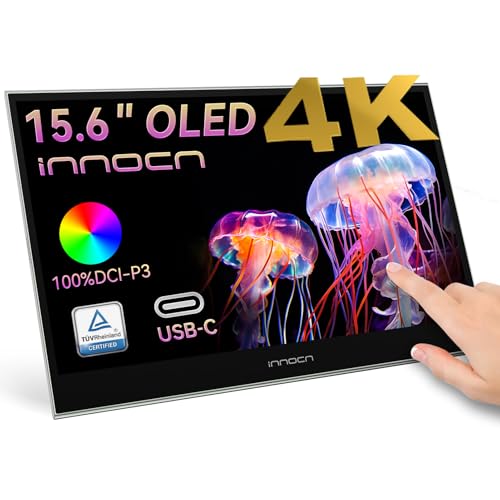
If you want OLED contrast and touch for photo and video work: The INNOCN 15.6" Portable Monitor OLED Touch Second — The INNOCN PU15 Pre C6 is a 15.6-inch 4K OLED with 10-bit color, 100% DCI-P3 and a quoted 100000:1 contrast ratio, plus 10-point touch. Every pixel makes its own light and switches fully off, so dark footage keeps shadow detail that goes gray on an IPS panel. Touch is genuinely useful here: pinch to zoom into a shot, scrub a timeline, annotate a slide with a finger. What you give up is peace of mind. Static taskbars and toolbars at high brightness can burn into an OLED over months of daily office use, so turn on pixel shift and keep brightness down. INNOCN's after-sales support is also thinner than what ASUS, LG or Lenovo offer.
The competition
This is what our research surfaced, not a census of the whole market. New portable monitors appear constantly, many from brands you've never heard of building around the same handful of panels. We stuck to models with enough published coverage and listing detail to judge fairly.
The ThinkVision M14t Gen2 14-inch Monitor — The Lenovo ThinkVision M14t Gen2 is the business-travel option: a 14-inch 1440p touch panel with two USB-C ports, up to 65W of pass-through charging to your laptop, and daisy-chain support so a Thunderbolt 4 machine can run two of them at once. That pass-through is the standout feature, because it means one charger in your bag instead of two. It lost to our picks on plain screen space — 14 inches feels tight for layout-heavy work — and it costs more than several larger monitors here. Touch on Windows can also need some driver fiddling on first setup, and there's no pen support. If you carry a ThinkPad and want touch plus charging in the smallest possible footprint, it's still the right call.
Setup and cable notes
Check your laptop before you buy anything. A USB-C port only carries video if it supports DisplayPort Alt Mode, Thunderbolt 3 or 4, or USB4, and plenty of budget machines have ports that move data only. Look for the little bolt or DP icon, then confirm on the spec sheet for the exact port you plan to use. Cables matter too. Some bundled USB-C cables don't have the bandwidth for video, so a certified Thunderbolt cable is the one to keep in your bag — it'll work with every monitor here. Try the whole setup at home before a trip, with each device you plan to connect. And if you go OLED, switch on pixel shift and the screen saver on day one, and keep brightness moderate during long work sessions.
Questions we get
What's the best portable USB-C monitor for a MacBook Pro?
The ASUS ZenScreen MB16AHV, for most people. It connects over a single Thunderbolt cable, macOS recognizes it without drivers, and there's nothing to configure. If you edit photos or video and want the color to hold up, the INNOCN OLED is the better companion to a MacBook Pro's display. Every Thunderbolt port on a MacBook supports DisplayPort Alt Mode, so compatibility isn't the question here.
Can I use a portable monitor with my Android phone over USB-C?
Only if your phone supports DisplayPort Alt Mode or Samsung DeX. Samsung Galaxy S and Z flagships have it, along with some high-end Pixel and OnePlus models, but most mid-range phones don't. Search your model's spec page for DisplayPort Alt Mode or USB-C video output to check. If it's there, any monitor in this guide will work with a decent USB 3.1 Gen 2 cable.
What's the difference between USB-C and Thunderbolt for a portable monitor?
USB-C is the connector shape; Thunderbolt 3 and 4 are high-bandwidth protocols that use that same shape. Both carry DisplayPort Alt Mode video, and every monitor here works the same with either. Thunderbolt's advantage is headroom — enough bandwidth for two 4K displays from one port — which barely matters when you're running a single portable screen. A quality Thunderbolt cable is the safest universal choice, since it's backward compatible.
Do portable monitors need their own power adapter?
Not usually. These are bus-powered, meaning they pull everything they need from your laptop through the USB-C cable. The catch is that the power comes out of your battery, so unplugged runtime drops — OLED panels draw more than IPS ones. If you want to run the monitor and charge your laptop at the same time from a single wall plug, you need pass-through charging, which among these is the ThinkVision M14t Gen2.
Is a portable OLED worth it over IPS?
If you edit video, review photos or watch a lot of movies on the road, yes. OLED's per-pixel blacks produce contrast that no IPS backlight can fake, and the difference in dark scenes is immediate. For spreadsheets, browser tabs and documents, no — you're paying more and taking on burn-in risk for a benefit you won't notice. Static taskbars over long workdays are exactly the thing OLED handles worst.
What's the best portable monitor for cafés and hotel rooms?
The ASUS ZenScreen MB16AHV. It sets up in well under a minute, the slim profile doesn't hog a crowded table, and the anti-glare IPS panel handles normal indoor lighting fine. If you often work in rooms with floor-to-ceiling windows, the LG gram +View's anti-glare coating and brighter ceiling hold up better against that kind of light.
Why you should trust us
For this guide:
- We read the manufacturer spec sheets for all five monitors and checked their panel, port and stand claims against published reviews and roundups of the category.
- We looked for repeated themes in owner feedback — compatibility headaches, stand wobble, burn-in worries — and let patterns rather than one-off complaints shape the flaws sections.
- We compared pixel density across screen sizes instead of resolution alone, since that's what decides how text actually looks at laptop viewing distance.
- We read owner reviews on every listing, weighted toward the critical ones, because that is where the recurring failures show up.
- We have a systematic way of automatically fetching the latest prices, so the numbers on this page stay current.
- This is a research-focused guide, so the team may not own every product listed — though we often do own the top winners, which gives us extra context for the recommendations.
- We don't accept free products, and the retailer commission never changes which product we recommend.
Sources
Best Portable Monitors 2026 — Wirecutter (NYT), Wirecutter / The New York Times
Best Portable Monitors — RTINGS.com, RTINGS.com
The Best Portable Monitors — PCMag, PCMag
Best Portable Monitors — Tom's Hardware, Tom's Hardware
Best Portable Monitors for 2026 — CNET, CNET
Best Portable Monitors — TechRadar, TechRadar
Best Portable Monitors — Digital Trends, Digital Trends
Best Portable Monitors — DisplayNinja, DisplayNinja
Amazon product listings and owner reviews for all 5 products
Manufacturer specification pages for each product
Some passages in this guide may be paraphrased with AI help.
Product prices and availability are accurate as of the date/time indicated and are subject to change. Any price and availability information displayed on Amazon.com at the time of purchase will apply to the purchase of this product.
More like this.
Continue exploring electronics reviews and recommendations.

The Best Portable Blood Pressure Monitors of 2026
If your doctor has asked you to track your blood pressure at home, the box on your nightstand matters more than you'd think. A reading taken with the…

The Best USB-C Hubs and Docking Stations
A laptop with two ports and a desk full of stuff is a daily annoyance. You want your monitor, your keyboard, your mouse, your wired network and your…

The Best Power Strips With USB Ports
Look at your desk or your nightstand and count what's plugged in. A laptop, a phone, maybe a monitor, a lamp, earbuds, a tablet that's permanently at 12…

The Best USB Hubs And Multi-Port Adapters For Laptops (2026)
Your laptop probably has two USB-C ports, maybe three. One of them is busy charging. That leaves one port for a monitor, a mouse, a keyboard, an external…

The Best USB Microphones for Podcasting
Your voice is the whole show. Listeners will forgive a rambling tangent, but they'll click away from a thin, echoey recording within seconds. A USB…

The Best Smart Propane Tank Level Monitors
Propane always runs out at the worst moment. The burgers are half done, or the camper's furnace quits overnight, or the water heater goes cold on a…